
Using Google Gemini in LobeHub
Gemini AI is a suite of large language models (LLMs) developed by Google AI, renowned for its cutting-edge capabilities in multimodal understanding and processing. It is a powerful AI tool designed to handle a wide range of tasks involving various types of data—not just text.
This guide will show you how to use Google Gemini in LobeHub:
Step 1: Obtain a Google API Key
- Visit and sign in to Google AI Studio
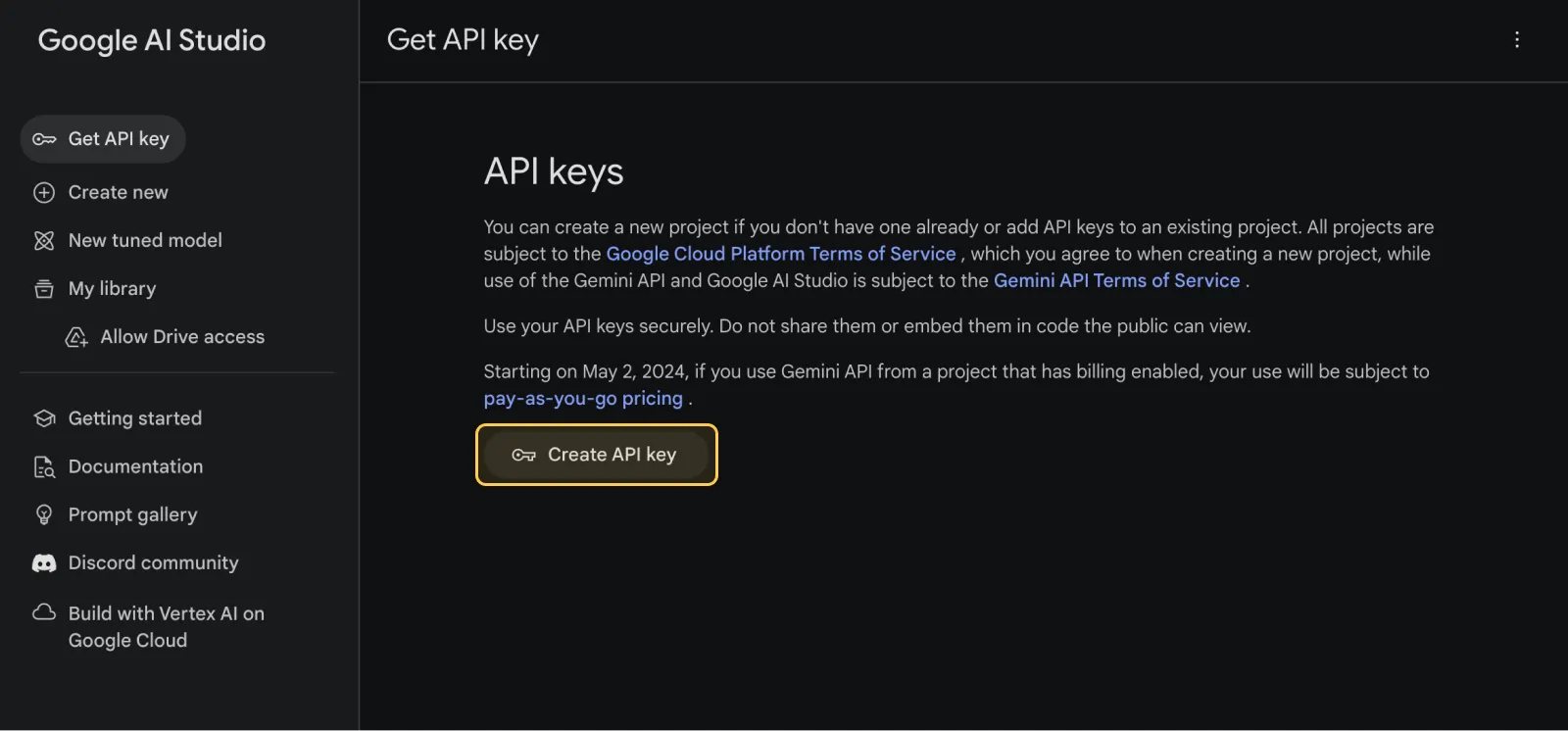
- In the "Get API Key" menu, click on "Create API Key"
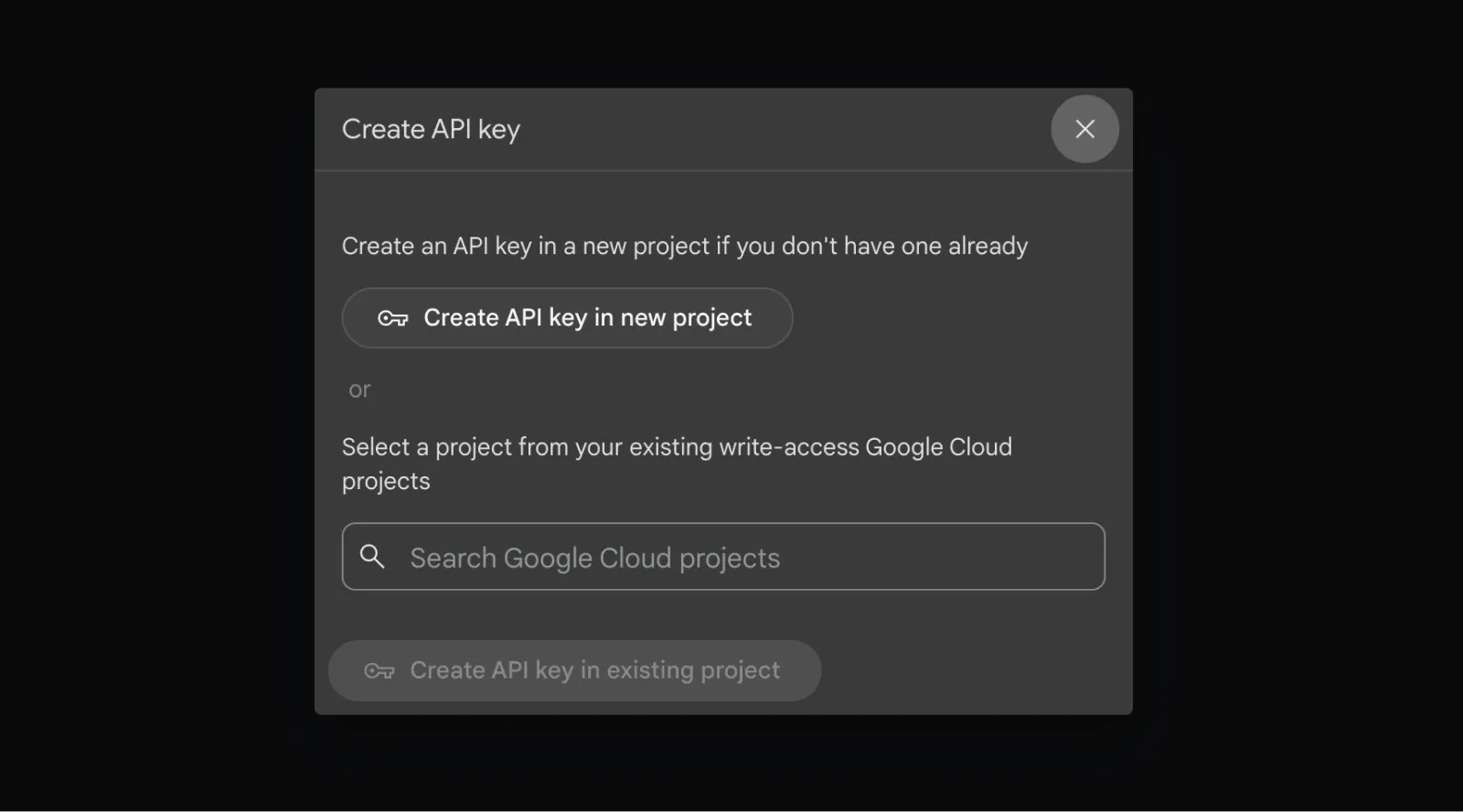
- Choose an existing project or create a new one to generate your API key
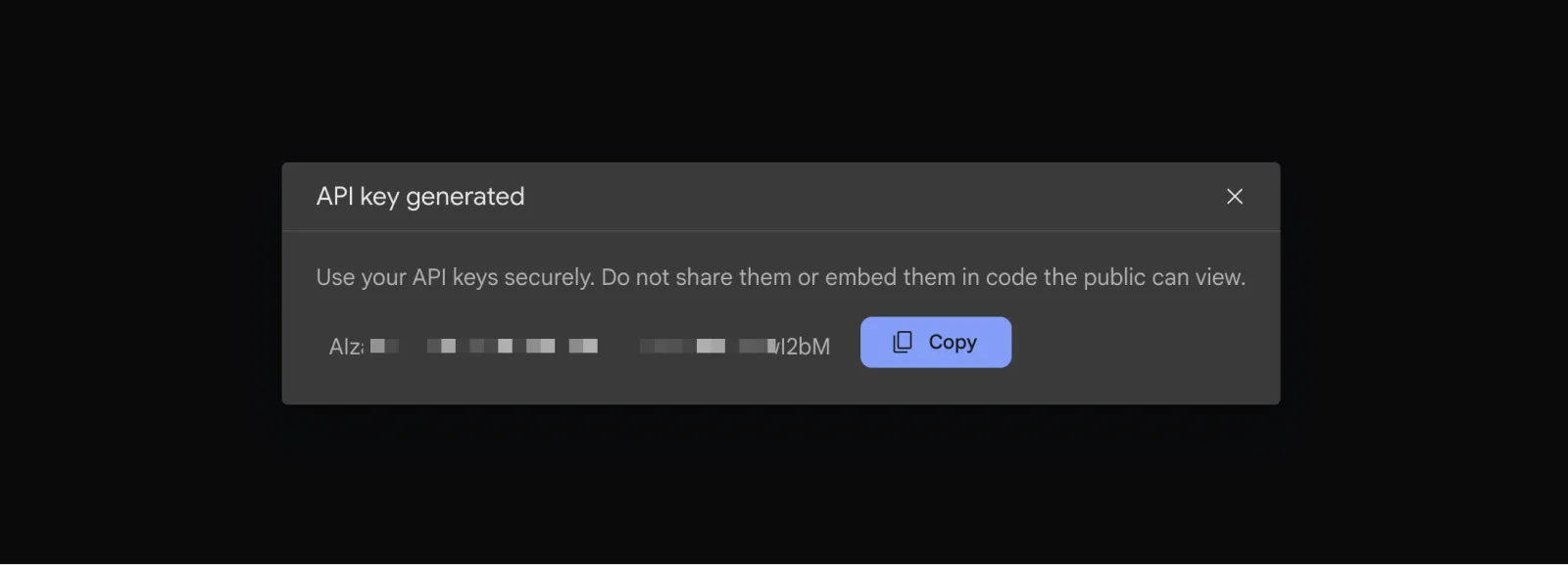
- Copy the API key from the pop-up dialog
Step 2: Configure Google Gemini in LobeHub
- Open App Settings → AI Providers, select Google, and enable the provider
- Enter the API key. If you use a proxy, enter its proxy URL
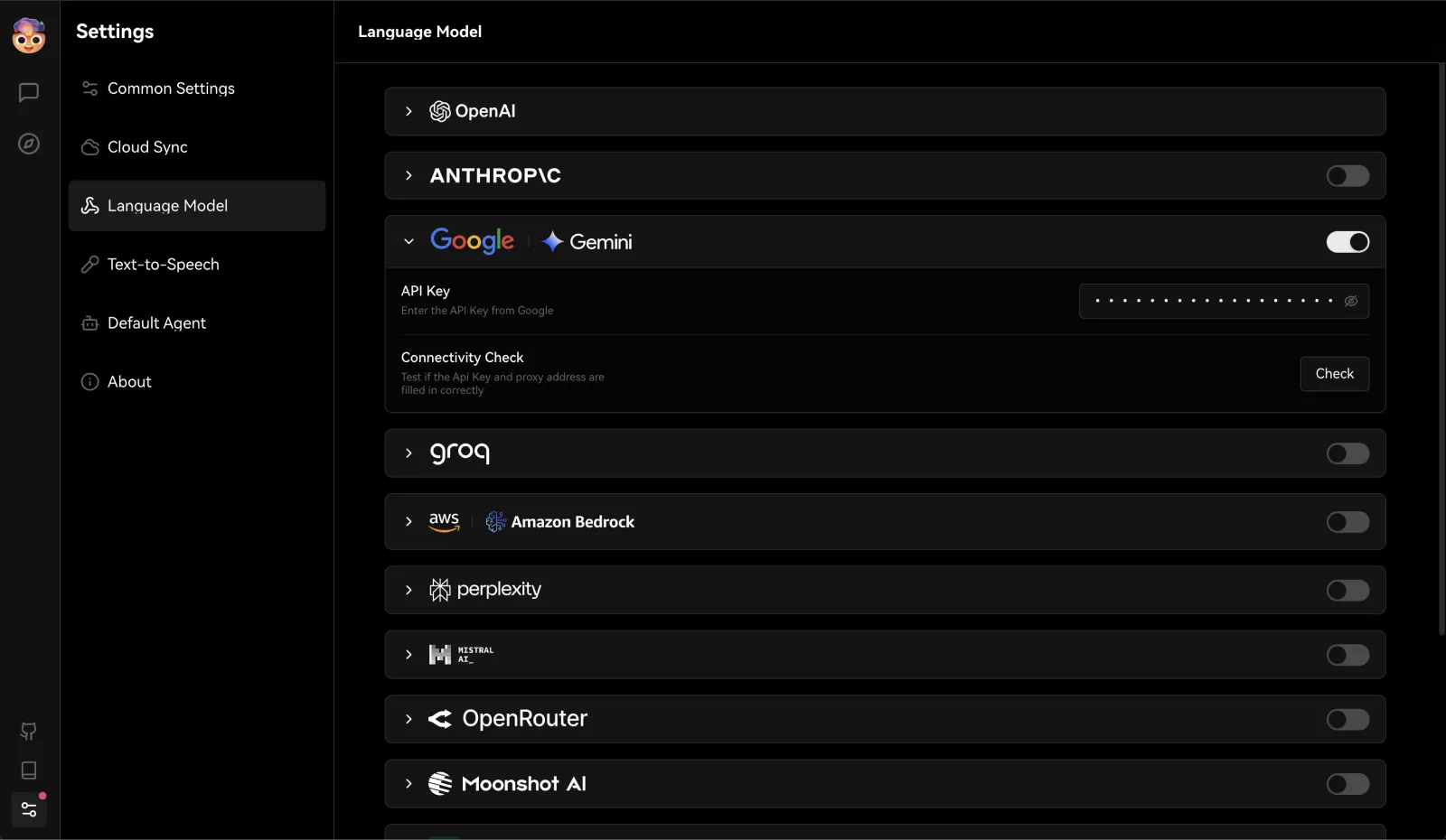
- Select Check to test the connection
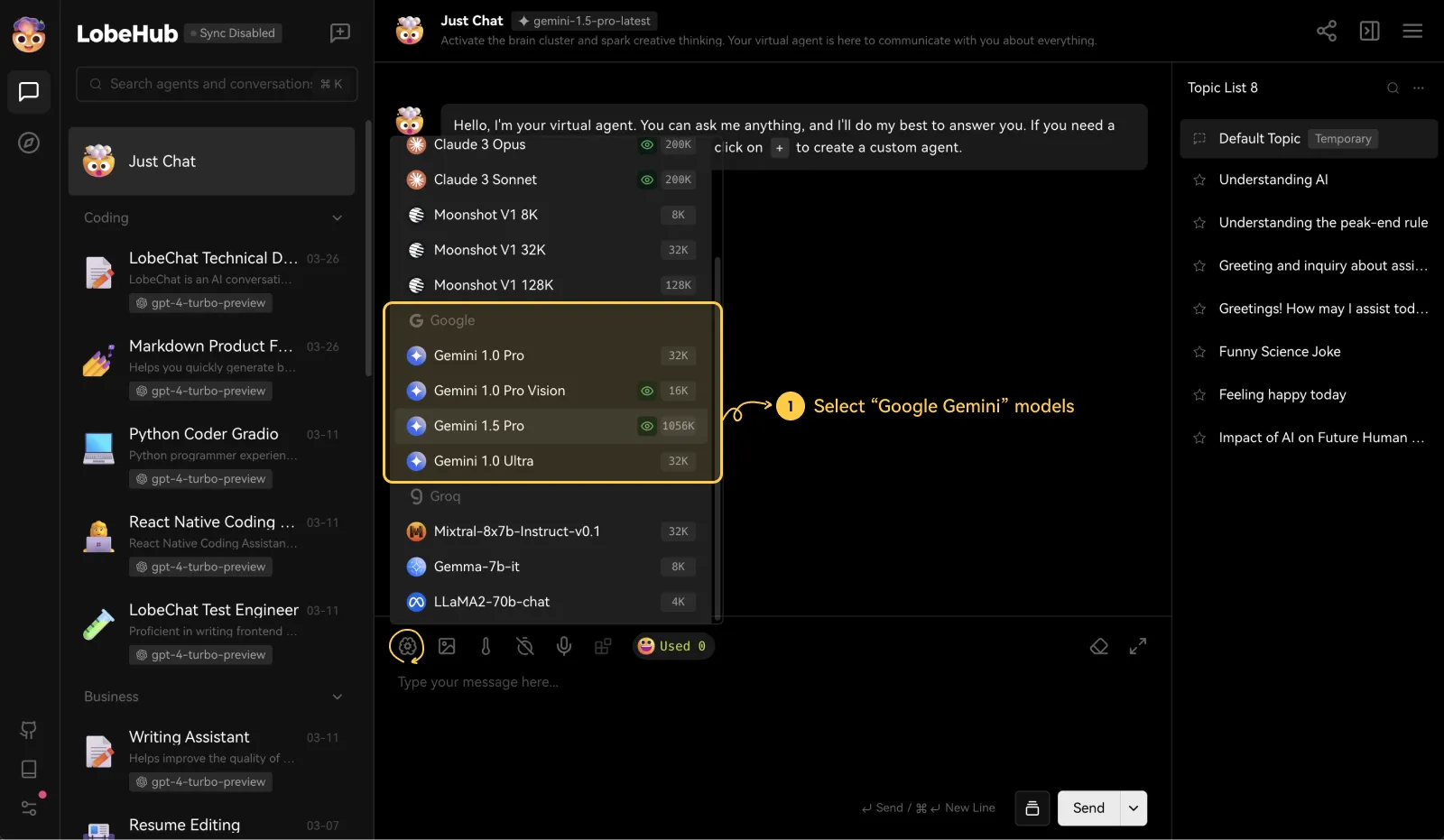
- Enable the Gemini models you need, then select one in the Agent settings
You may incur charges from the API provider while using the service. Please refer to Google Gemini’s pricing policy for details.
And that’s it — you’re now ready to use Google Gemini in LobeHub!
Text to speech (Gemini TTS)
The Google provider also turns text into speech with Gemini TTS. It uses the same API key as the chat models.
Choose a model and a default voice
-
Open App Settings → AI Providers → Google. The TTS tab of the model list shows the Gemini speech models:
Model Notes gemini-3.8-flash-ttsEnabled by default. Recommended. gemini-3.8-flash-lite-ttsEnabled by default. Lower cost and latency. gemini-2.5-flash-preview-ttsLegacy preview. Google shuts it down on 2026-11-17 at the earliest. gemini-2.5-pro-preview-ttsLegacy preview. Google shuts it down on 2026-11-17 at the earliest. -
Turn a model on or off with its switch.
-
To change the voice used when a request names none, select the model's Configure button and pick a Default Voice. All 30 Gemini prebuilt voices are listed with their style (for example
Kore · Firm,Puck · Upbeat). Leave it empty to use the model default,Kore. The setting is saved per model and applies to the LobeHub CLI and the/api/v1/audio/speechendpoint.
Generate speech

- Voice: one of the 30 prebuilt voices, for example
Kore,Puck,ZephyrorCharon. Every voice speaks all supported languages, including Chinese and English. - Style: Gemini has no numeric speed, pitch or volume. Use
--instructionsto describe pace and tone in natural language, for example "speak slowly in a calm voice".--speed,--pitch,--volumeand--emotionare rejected for Gemini models. - Format: Gemini returns 24 kHz, 16-bit mono PCM. LobeHub encodes it to MP3 (24 kHz mono, 40 kbps), which is the only format returned through the CLI and the speech endpoint (
audio/mpeg). - Length: one request returns up to about 11 minutes of audio. Split long text into several requests.
- Billing: Gemini TTS bills the input text tokens and the generated audio tokens (about 25 tokens per second of audio). See Gemini API pricing.
Troubleshooting
- "Google API Key is incorrect or empty…": no key is set, or Google rejected it. Check the key in App Settings → AI Providers → Google, or
GOOGLE_API_KEYon a self-hosted server. - Rate-limit errors: the request exceeded the TTS rate limit of your Gemini API tier. Wait and retry, or raise the tier of the Google Cloud project.
- Content blocked: Gemini refused the text for safety reasons. Rephrase the text.