
Memory
With Memory enabled, Agents can save useful context and preferences from your conversations and refer to them later, reducing what you need to repeat.
Memory organizes details such as your role, work context, preferences, and habits. You can review and update these details at any time.
How Memory Can Help
Without Memory, you may need to:
- You repeat context constantly
- Agents forget your preferences between sessions
- Restate your preferred format or tone
With Memory, Agents can adapt responses using saved context. You can review and correct entries to keep them current.
How Memory Is Saved and Used
Memory works in four steps:
Conversation Analysis
As you interact, the Memory Agent analyzes conversations for insights: explicit preferences, implicit patterns, project context, and communication style.
Memory Extraction
Relevant details are saved as entries such as preferences, facts, or ongoing context.
Storage and Indexing
You can search, edit, or delete saved entries. If new information conflicts with an older entry, update the saved memory.
Contextual Recall
When a memory is relevant to your request, an Agent can use it in the response.
Review and Control
Automatic extraction saves useful context from conversations. In the Memory panel, you can review and edit saved entries, delete unwanted content, or add memories manually.
User Memory vs. Agent Self-Learning (Labs)
This page covers user memory: information about you, such as preferences, background, and ongoing projects, that can help personalize responses.
Agent self-learning (Labs) is a separate experimental capability for reusable working methods and experience. User Memory stores personal context instead. Enabling Memory does not enable self-learning or train the underlying model.
Types of Memory
Personal Preferences
How you like to work and communicate:

Personal Context
Who you are and what you're doing: role, organization, team, current projects, key stakeholders.
Skills and Knowledge
What you know and what you're learning. Helps Agents calibrate their explanations to your level.
Patterns and Habits
Recurring behaviors and workflows: weekly meetings, common requests, decision-making criteria, typical project workflows.
Historical Context
Past projects and decisions: lessons learned, reasoning behind past choices, key collaborators.
Understanding Agent Memory
Agent Memory is a built-in plugin in LobeHub. It automatically identifies and extracts key information from your conversations, building a structured memory base. These memories are applied in future interactions, making communication more personalized and efficient. It saves summaries of useful context and preferences rather than a verbatim transcript.
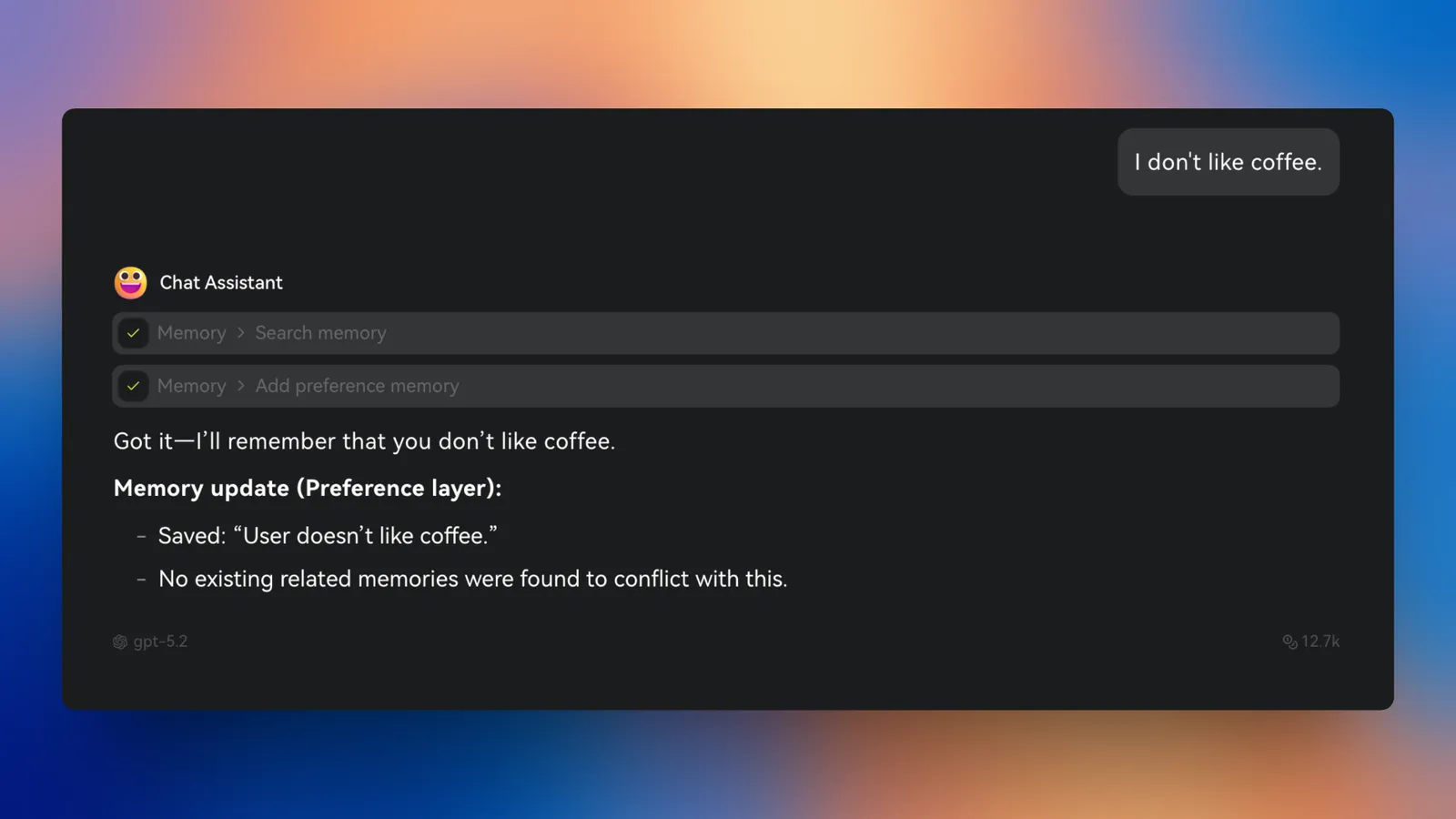
Enabling Memory
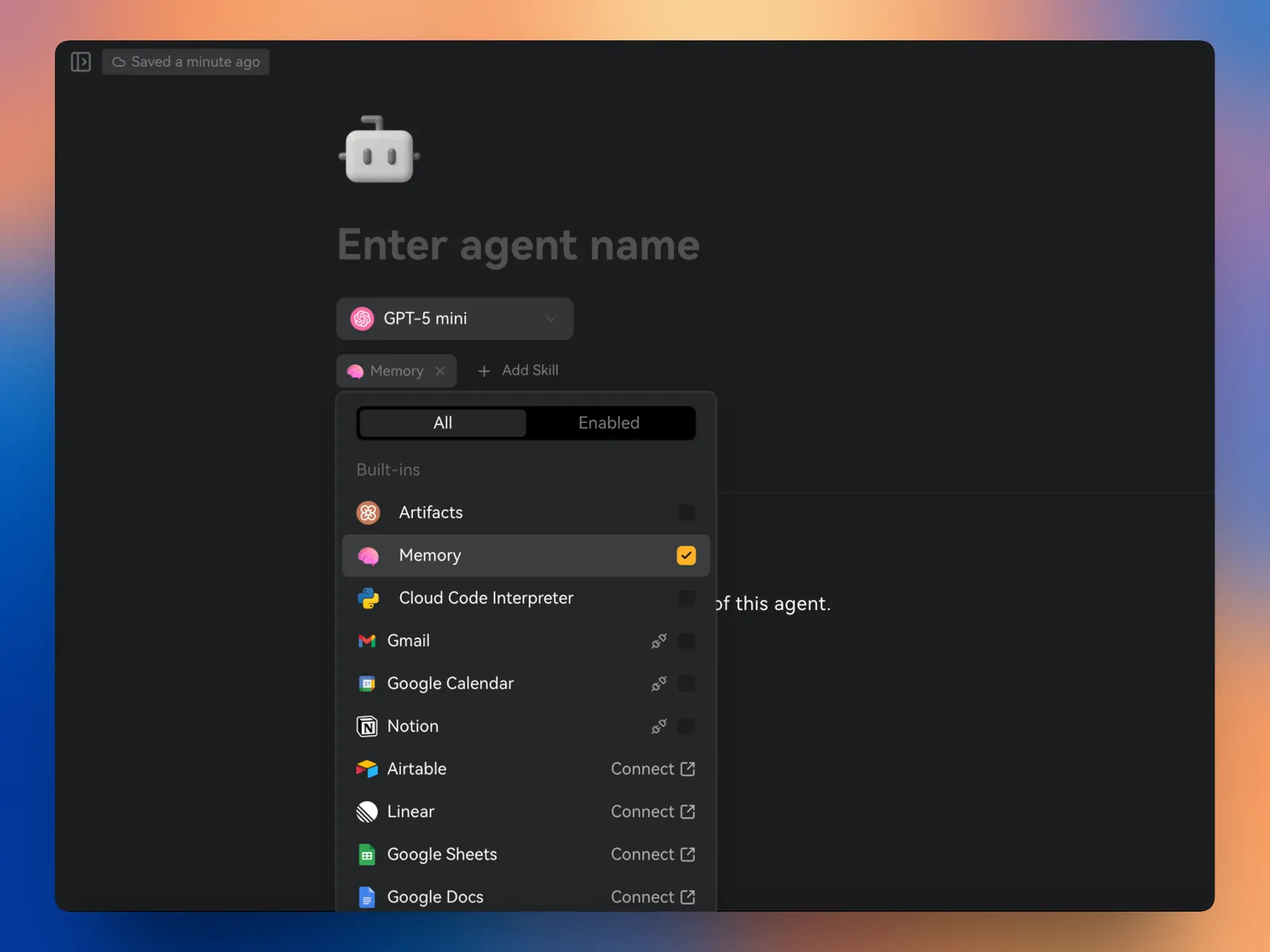
Enable Memory separately for each Agent. You can turn it on from the Agent Profile page or directly in a conversation.
Enable from Agent Profile
Go to the Agent Profile page, click + Add Plugin, and check Memory to enable it.
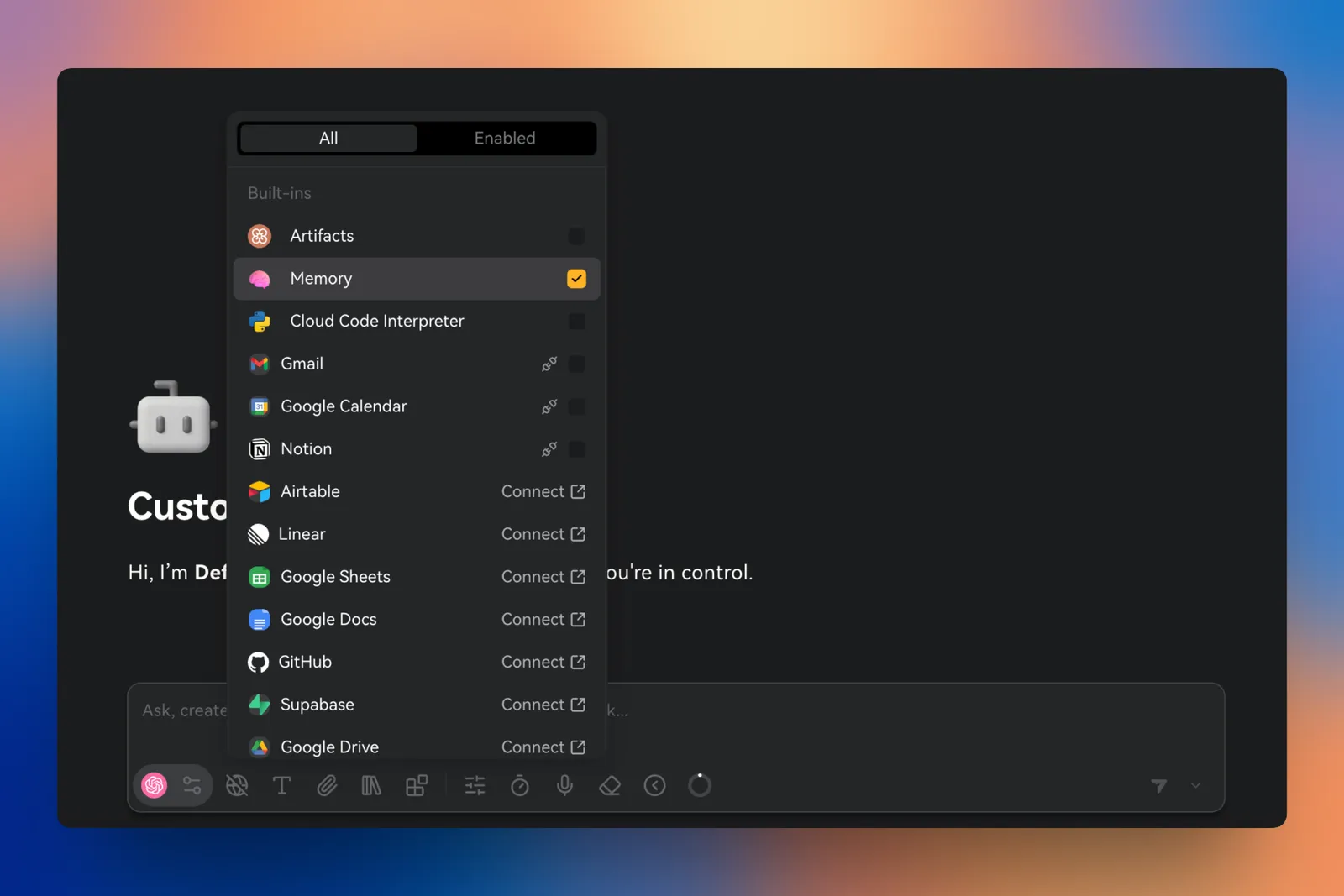
Enable in a Conversation
Open a conversation, click the plugin icon below the chat input, and check Memory to activate it.
Managing Memory
View Memory
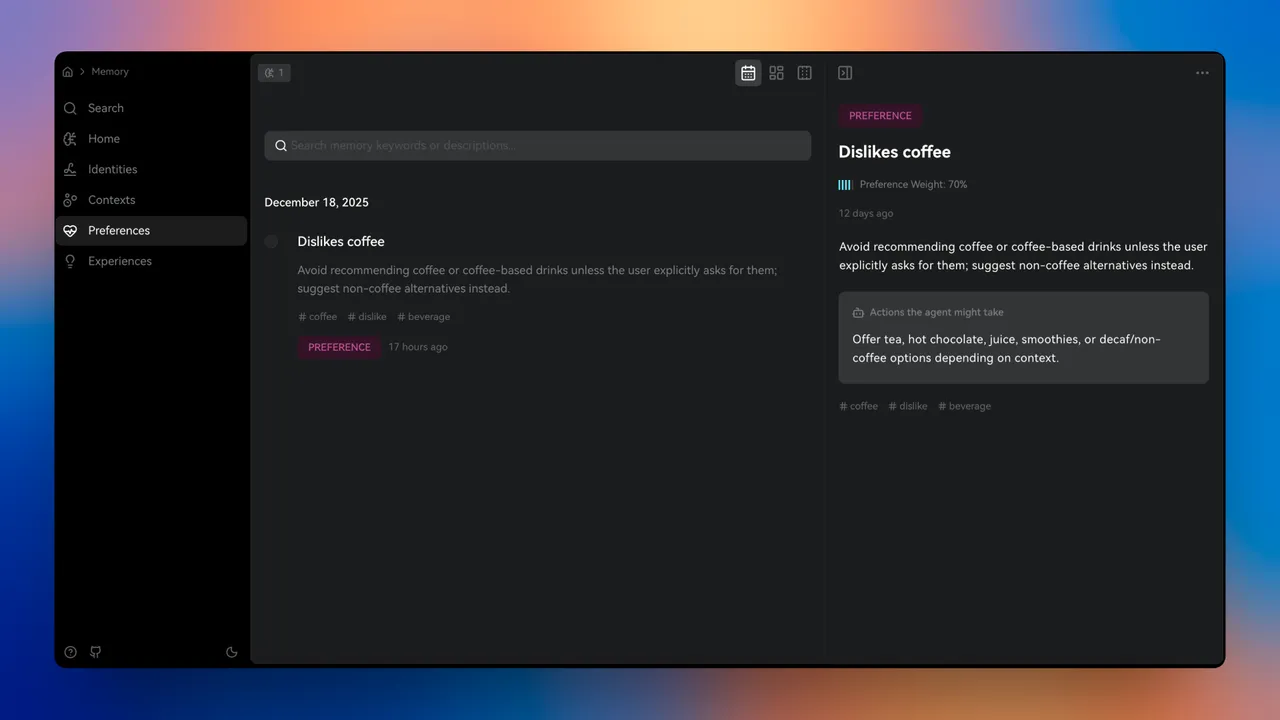
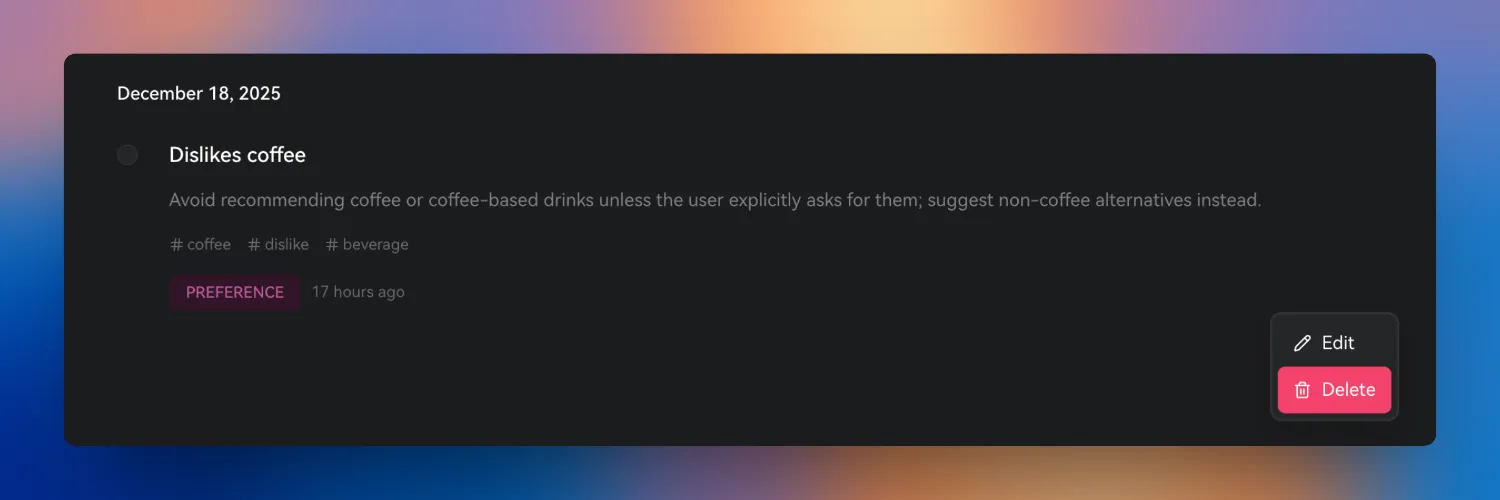
Click the Memory icon at the bottom of the left sidebar to open the Memory panel. It displays all memories extracted from your conversations, organized by type. Each memory shows:
- Title — A concise summary, e.g. "Dislikes coffee"
- Preference Weight — How strongly the Agent prioritizes this memory. Higher weight = more influence in conversations.
- Created Time — When the memory was extracted
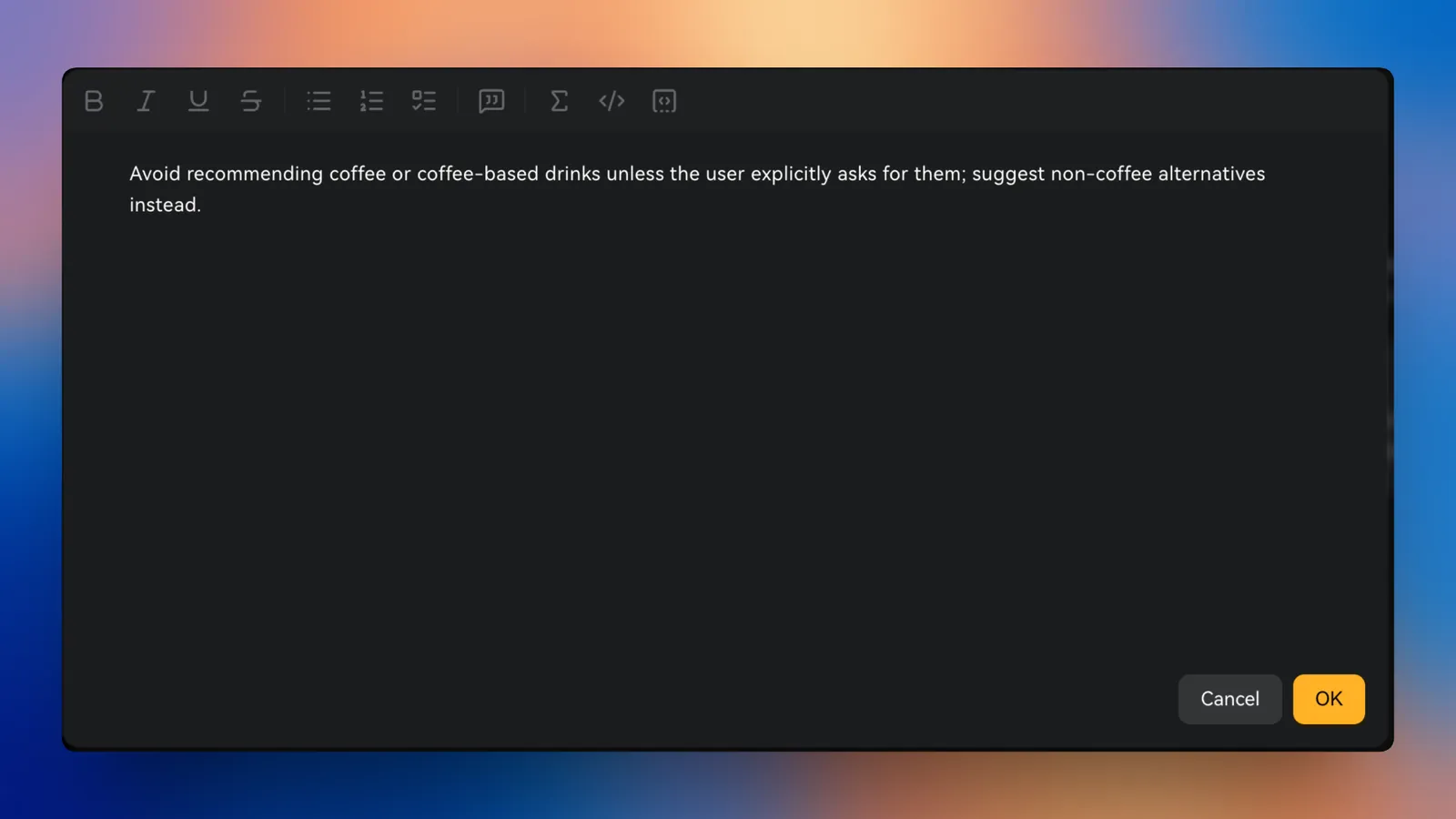
- Memory Instruction — The behavioral rule derived from the conversation, e.g. "Avoid recommending coffee unless the user explicitly requests it; suggest non-coffee alternatives."
- Possible Actions — How the Agent might apply this memory, e.g. "Offer tea, hot chocolate, juice, or decaf options depending on context."
- Tags — For categorization and search
Search Memory
Use the search function to quickly find specific memories. You can also open the command menu at any time and search for memories there. Filter by keyword, category, date range, or confidence level.
Edit Memory
Modify any memory instruction to better reflect your actual needs and preferences.
Delete Memory
Select a memory and click the delete button to remove it. You can also bulk delete by category or clear all memories.
The Memory Agent
The Memory Agent is a built-in Agent dedicated to managing your personal Memory:
- Extraction — Analyzes conversations to identify valuable insights worth keeping
- Organization — Categorizes and structures memories for easy retrieval
- Maintenance — Identifies outdated or conflicting memories and suggests updates
- Application — Determines when to inject relevant memories into an Agent's context
Interacting with the Memory Agent
Talk directly to the Memory Agent to request additions or updates, or to review memories. Check the Memory panel afterward to verify that a requested change was saved:
- "Remember that I prefer morning meetings over afternoon ones."
- "What do you know about my current projects?"
- "Update my role: I'm now VP of Product, not Senior PM."
- "What do you remember about my communication preferences?"
Advanced Memory Features
Memory Categories
Organize memories by category:
- Professional: Work-related context and preferences
- Personal: Personal interests and habits
- Projects: Project-specific information
- Skills: Knowledge and expertise areas
- Relationships: Colleagues, stakeholders, contacts
- Custom: Use custom categories if your version supports them
Memory Confidence Levels
Confidence helps you assess how well a memory is supported. Use these examples when you review entries:
Memory Relationships
Related memories can provide richer context: for example, your role, current project, timeline, and stakeholders.
Memory Search
Start with keyword search. Other filters and source details depend on your version; use them when available:
- Keyword search: Search memory content
- Category filter: Show only specific categories
- Date range: Memories from specific timeframe
- Source conversation: Find where memory originated
- Confidence level: Filter by how certain the memory is
Using Memory Effectively
Getting Started
When you first use LobeHub, help Agents learn about you quickly:
Share Professional Context
Tell agents about your role, team, organization, and current projects.
State Preferences Explicitly
Be clear about how you like to communicate, what level of detail you need, and your preferred formats.
- ✅ "I always want PRDs to include a competitive analysis section"
- ❌ "Add competitive analysis" (too vague to memorize)
Add Manual Memories
Create memories for important facts, recurring contexts, and preferences. Review the saved entries for accuracy.
Natural Conversation with Memory
After you establish the initial context, continue working normally. Relevant memories can help an Agent:
Without Memory:
- Agent asks: "What format would you like?" / "Who are the stakeholders?" / "What sections should I include?"
With Memory:
- Use your preferred template
- Include sections you often request, such as user research
- Refer to saved stakeholder information when relevant
Refining Over Time
You can update Memory as your situation changes:
- When an Agent gets something wrong, correct it: "Actually, I prefer X instead of Y." Then check the Memory panel and edit the saved entry if needed.
- As your situation changes, tell Agents: "I'm now leading the mobile team in addition to web."
- Review your Memory panel monthly — remove outdated entries, add new information.
Privacy and Control
Use the Memory panel to review, edit, delete, or clear saved entries. Keep passwords, financial details, and other sensitive information out of Memory.
To remove saved information, delete it from the Memory panel. When cleaning up personal information, you can also review your conversation history.
For storage, access, sharing, and model-training policies, consult the privacy terms for your service or ask your deployment administrator.