
Connect LobeHub to WeChat
By connecting a WeChat channel to your LobeHub agent, users can interact with the AI assistant through WeChat direct messages. This page covers an Agent channel, not an account link through the official Messenger bot.
Prerequisites
- A paid personal plan
- A WeChat account
Paid Access Requirements
The 2026-07-08 announcement gives an expected effective time of July 10, 2026 at 12:00 PM ET (July 11 at 00:00 Beijing time). New connections and reconnections require a paid personal plan. Continued use of existing connections also requires a paid plan after the notice period. This change affects only WeChat messaging, not LobeHub chat, model usage, or other core features.
Step 1: Open Channel Settings
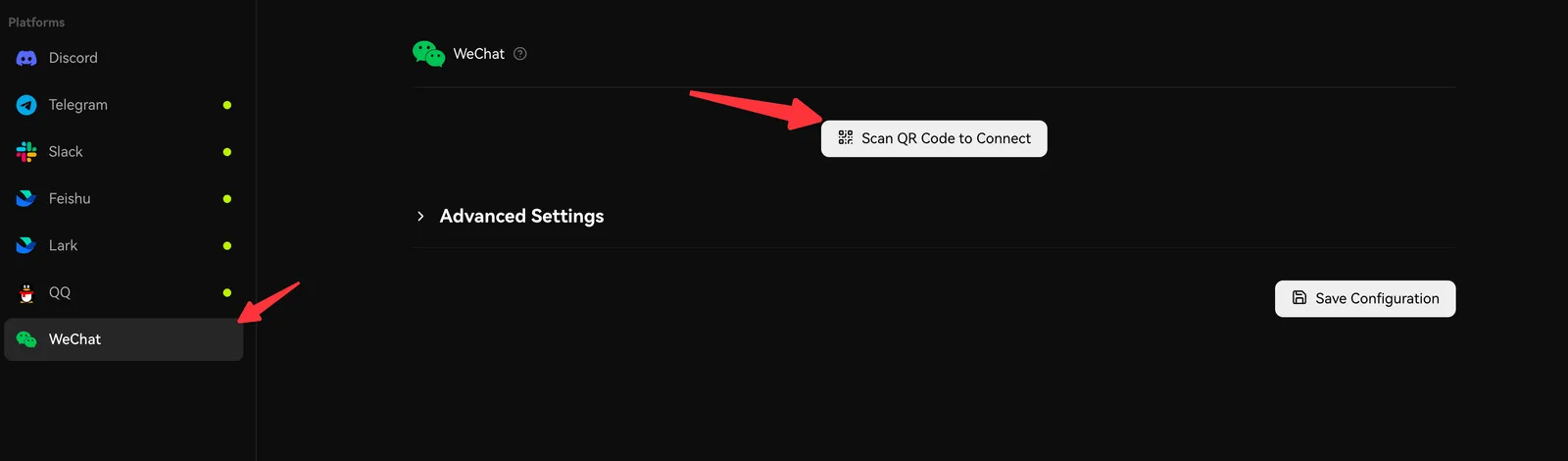
In LobeHub, navigate to your agent's settings, then select the Channels tab. Click WeChat from the platform list.
Step 2: Scan QR Code to Connect
Click "Scan QR Code to Connect"
On the WeChat channel page, click the Scan QR Code to Connect button. A modal dialog will appear displaying a QR code.
Scan with WeChat
Open WeChat on your phone, go to Scan (via the + button in the top right), and scan the QR code displayed in LobeHub.
Confirm Login
After scanning, a confirmation prompt will appear on WeChat. Tap Confirm to authorize the connection.
Connection Complete
Once confirmed, LobeHub will automatically save your credentials and connect the bot. You should see a success message in the channel settings.
Step 3: Test the Bot
Open WeChat, find your bot contact, and send a message. The bot should respond through your LobeHub agent.
Group Chat Support
This guide covers WeChat direct messages only. Existing repository pages conflict on group support. The July 8 announcement changes paid access but does not confirm group-chat support. This guide does not list groups as a confirmed feature or provide group invitation and @mention instructions.
For group chats, first verify support for your current WeChat connection. Alternatively, choose a platform with documented group support in Channels Overview.
Advanced Settings
| Setting | Default | Description |
|---|---|---|
| Character Limit | 2000 | Maximum characters per message (range: 100–2048) |
| Concurrency Mode | burst | Groups images and text that arrive close together into one turn; debounce is also available |
| Message Merge Window | 5000 ms | How long burst or debounce waits for more messages in the same turn |
| Show Usage Stats | Off | Display token/cost stats in replies |
How It Works
Unlike webhook-based platforms (Telegram, Slack), WeChat uses a long-polling mechanism via the iLink Bot API:
- When you scan the QR code, LobeHub obtains a bot token from WeChat's iLink API
- LobeHub continuously waits for new messages through the iLink API. A long-poll request typically waits for about 35 seconds, then the next poll starts immediately
- When a message arrives, it is routed through the LobeHub agent for processing
- The agent's response is sent back to WeChat via the iLink API
A background message gateway maintains the polling connection and reconnects it automatically.
Limitations
- No message editing — WeChat does not support editing sent messages. Updated responses will be sent as new messages.
- No reactions — WeChat iLink Bot API does not support emoji reactions.
- Message length limit — Messages exceeding the character limit will be automatically split into multiple messages.
- Session expiration — The bot session may expire and require re-authentication by scanning a new QR code.
Troubleshooting
- QR code expired: Click Refresh QR Code in the modal to generate a new one.
- Bot not responding: The session may have expired. Go to the WeChat channel settings and re-scan the QR code to reconnect.
- Delayed responses: The 35-second value is the wait window for one long-poll request, not a delay applied to every message. If delays persist, check the connection and scan again.
- Connection lost after some time: WeChat sessions expire periodically. Re-authenticate by clicking "Scan QR Code to Connect" again.