
Using Multiple Model Providers in LobeHub
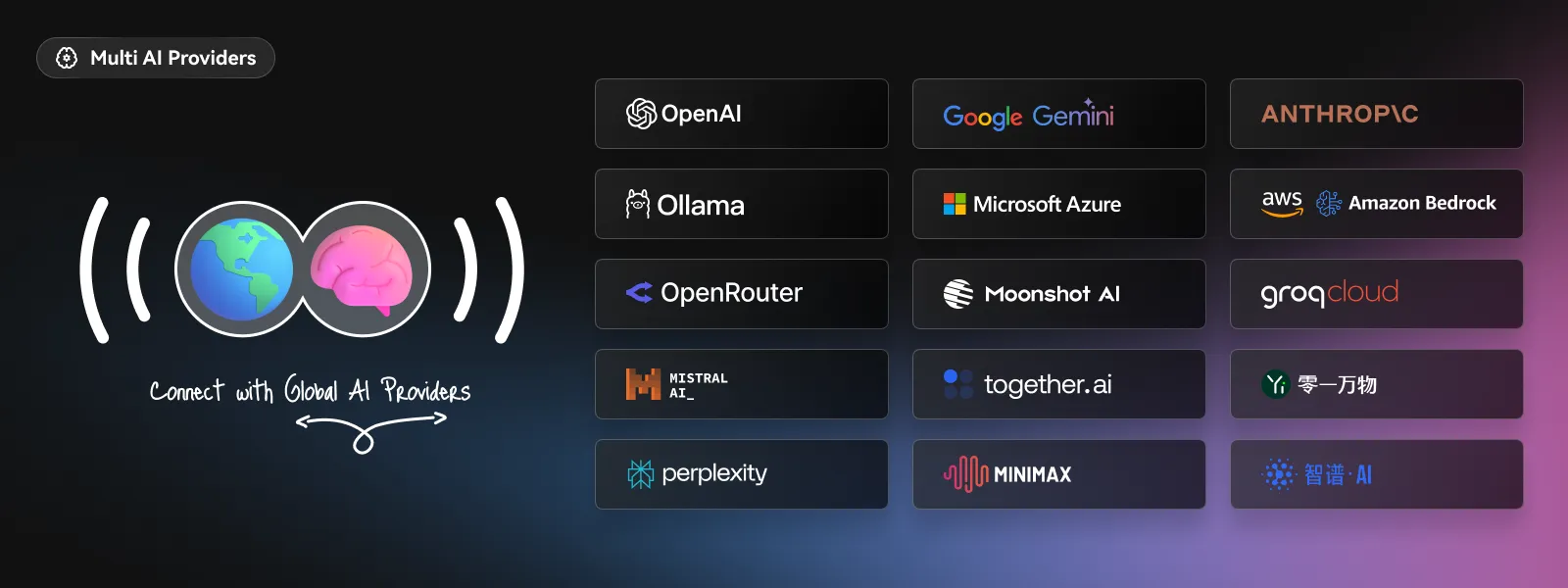
You can choose a model provider for each Agent or connect a local inference service. This page groups setup guides by use case. The full provider cards remain at the end.
Why Multi-Provider Support?
- One interface — Select models and modalities that each provider supports.
- Cost comparison — Compare task quality, latency, and budget.
- Less dependence on one vendor — If a provider becomes unavailable, select a compatible, configured alternative. This does not guarantee automatic failover.
- Per-Agent choice — Set different default models for different responsibilities.
- Local inference — Run local models with Ollama or LM Studio. Local inference usually avoids cloud model API charges, but hardware and operation still have costs.
A local model does not make the entire workflow private or offline. Cloud sync, search, and other Connectors can still transmit data.
Find Guides by Category
These groups are shortcuts, not exclusive capability categories or a complete provider list. One provider can offer both text and image models.
Models, regional access, prices, and API support depend on the provider and your account.
| Category | Setup guides |
|---|---|
| Major Commercial Providers | OpenAI (GPT-6 Astra) · Anthropic (Claude Fable 5.1, Claude Opus 5, Claude Sonnet 5) · Google (Gemini 3.8 Flash) · Azure OpenAI · AWS Bedrock |
| Aggregators and Inference Platforms | OpenRouter · Together AI · Groq · Fireworks AI · SambaNova |
| Chinese Providers | DeepSeek (DeepSeek-V4.1-Flash) · Moonshot · Zhipu · Qwen (Qwen3.8-Max) · Baichuan · Baidu Wenxin · iFlytek Spark |
| Local and Self-Hosted Inference | Ollama · LM Studio · vLLM |
| Image and Media Services | OpenAI · Black Forest Labs · fal · ComfyUI · Google · Volcengine |
| Speech Synthesis (TTS) | ElevenLabs · Fish Audio · Doubao Speech · OpenAI · MiniMax · Google Gemini |
An image model name is not a provider name. Select the guide for the provider or local runtime that serves the model.
Setting Up Providers
Open App Settings → AI Providers, then select the provider you want to configure. The available fields depend on the provider:
- Select a provider from the list and turn on its switch.
- Enter the credentials shown on the page. Most cloud providers use an API key. Providers such as Amazon Bedrock and Azure OpenAI also show region, endpoint, or other provider-specific fields.
- If Proxy URL is available, enter the provider API base URL or a compatible endpoint. For local services, enter the Ollama or vLLM server address.
- Select Check to test the connection.
- Enable a model in the model list. You can also fetch or add models when those actions are available.
- Your changes are saved automatically. You can then select the provider and model in the Agent settings.
For environment variable configuration in self-hosted deployments, see the model provider environment variables reference.
See the Agent guide for model selection principles. See Feature Status and Availability for Cloud and Desktop definitions.
Troubleshooting
Connection error / API key invalid — Check your API key for extra spaces. Check that the key type matches the provider.
Model not available — Your account tier can exclude a model, or the provider can retire it. Check the provider's model availability page.
Rate limit errors — You reached the provider's request rate limit. Reduce the request rate, use another configured provider, or review account upgrade options.