
Using Gitee AI in LobeHub
Gitee AI is an open-source platform built on Git-based code hosting technology, designed specifically for artificial intelligence (AI) applications. It aims to provide developers and enterprises with an all-in-one AI development service, including model testing, inference, fine-tuning, and deployment.
This guide will walk you through how to use Gitee AI within LobeHub.
To configure this provider in LobeHub, open App Settings → AI Providers, select the provider, and turn on its switch.
Step 1: Obtain Your Gitee AI API Key
- Register and log in to the Gitee AI official website
- In the dashboard, purchase and top up the
Serverless API
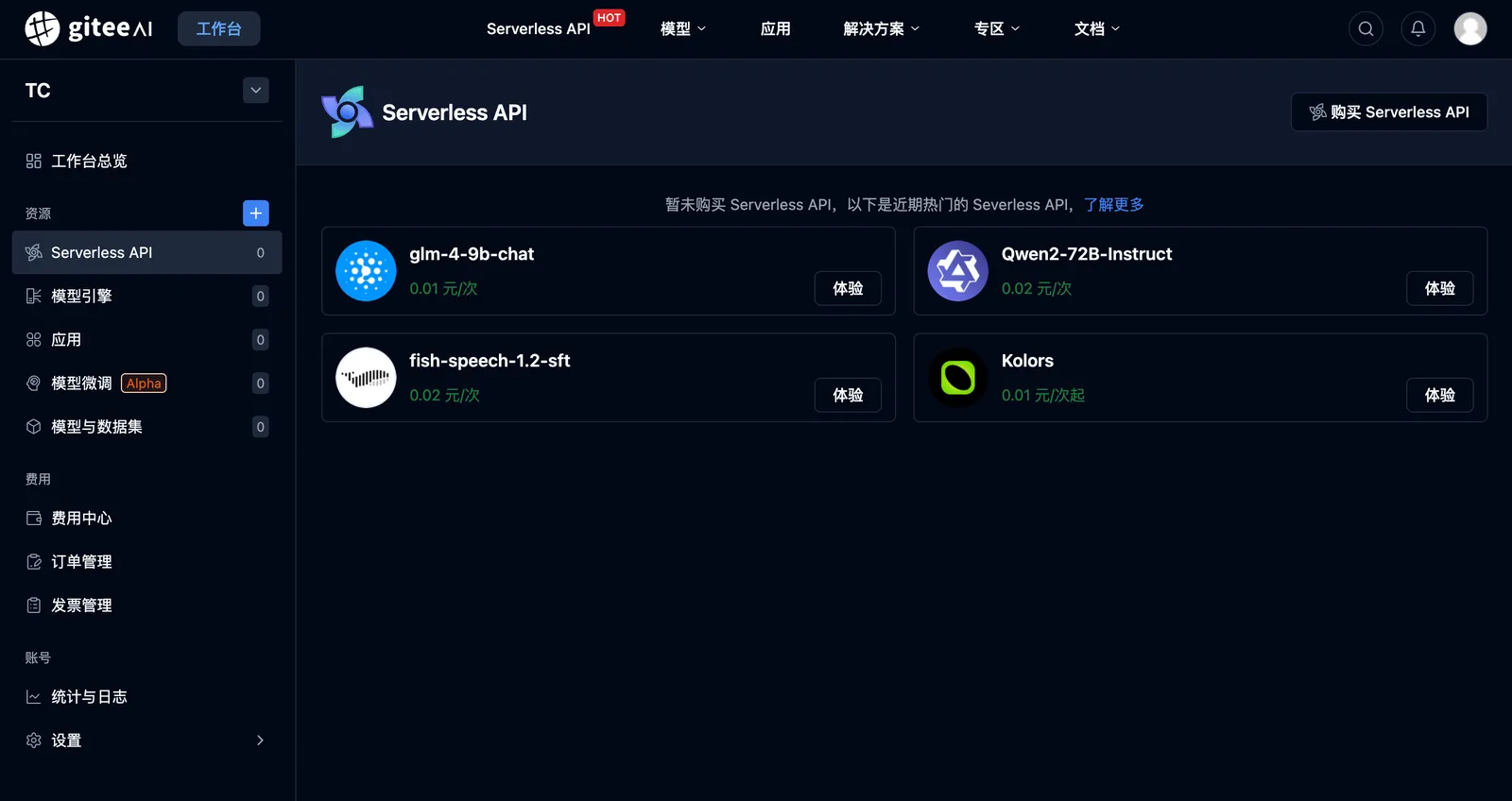
- Go to the
Settingssection and click onAccess Tokens - Create a new access token
- Save the token from the pop-up window

Make sure to save the access token shown in the pop-up window. It will only be displayed once. If you lose it, you’ll need to generate a new one.
Step 2: Configure Gitee AI in LobeHub
- Go to the
Settingspage in LobeHub - In the provider list, select the configuration section for
Gitee AI
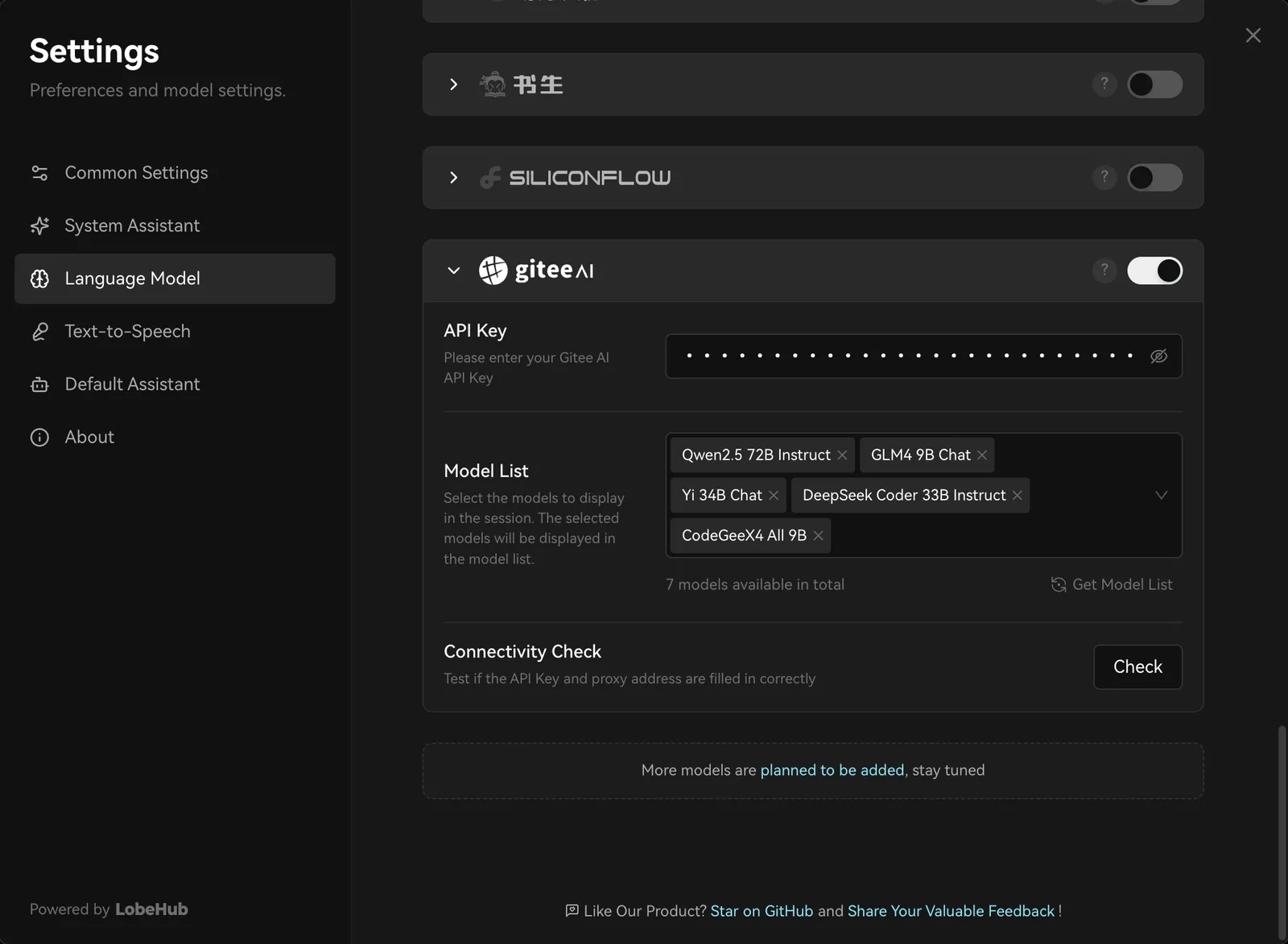
- Paste the API key you obtained earlier
- Choose a Gitee AI model for your AI assistant to start chatting
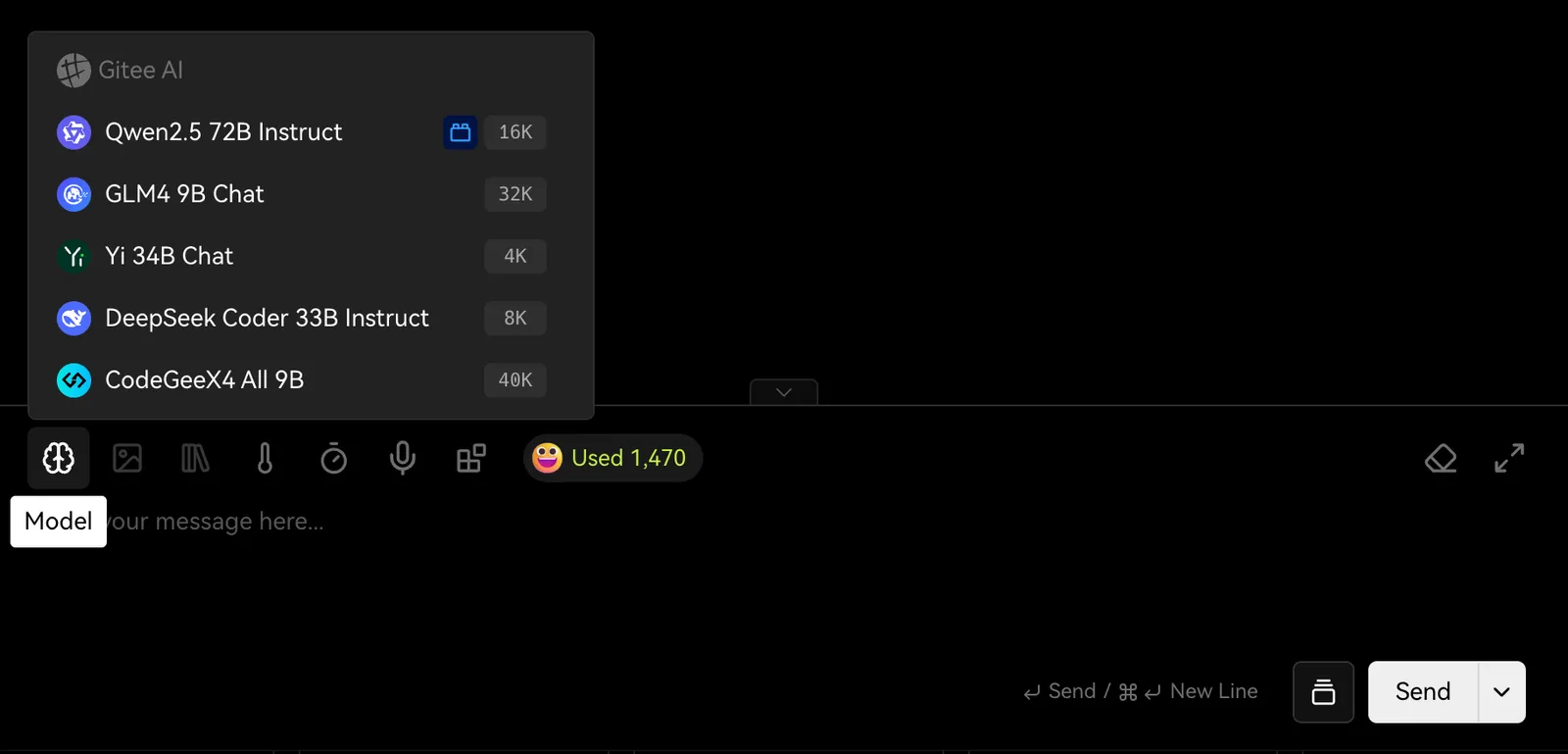
You may need to pay for API usage depending on your usage. Please refer to Gitee AI’s pricing policy for more details.
And that’s it! You’re now ready to use Gitee AI models for conversations in LobeHub.